I’m in an urgent pickle, I’m on a time crunch of getting a project done and I am simply wanting to upgrade my website (which I got from a template) to a Basic Site Plan for the custom domain.
However, in order to do this I need to delete the CMS Collections and Items.
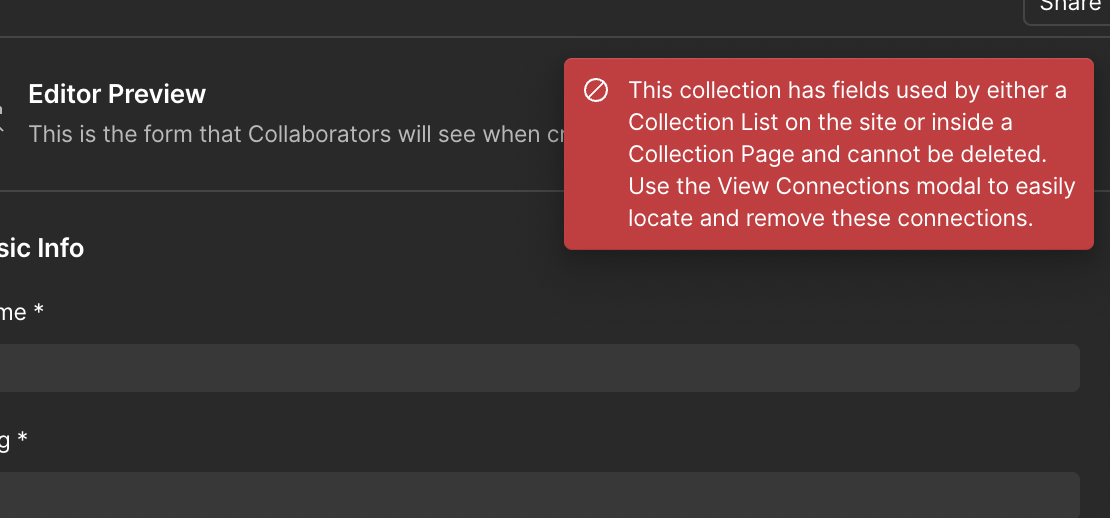
I have deleted all of the items however it isn’t letting me delete the collections due to connections being present.
I cannot delete the connections as a message that states ‘Element Setting Override’ comes up and gives me no eye option to view where this connection is coming from.
I have tried everything including deleting every single thing off those CMS pages but I’m unable to locate or delete these ‘Element Setting Override’ auto connections ?
I have no idea how to simply delete the CMS connections and I’m at my whits end with it, as it shouldn’t be this complicated. Any help would truly be greatly appreciated.
I didn’t think deleting CMS components would be this hard..
You’re already on the right screen (as shown in your screenshot).
Now expand each section listed under “Components” (like News) > Click the dropdown beside each Element Setting Override. Unfortunately, there’s no preview option, but here’s what to do:
2. Locate the Component or Symbol
Those overrides are often embedded in:
Symbols (Reusable Components)
Collection List Wrappers
Hidden elements on other pages (check hidden tabs or sections)
Search in the Navigator panel (press F or / to search) for the component name (e.g. News, or use Collection List as a keyword). Open and inspect each one.
3. Reset or Disconnect Fields
Inside each suspected component or symbol:
Select each element
Look in the Element Settings Panel (D) on the right
Click the purple CMS binding icon next to any connected field and choose “Disconnect”
Even if something looks visually disconnected, there might be a setting override on things like alt text, background images, or button text.
4. Check Symbols
Go to your Symbols panel, double-click and inspect inside each one — sometimes bindings are inside hidden or duplicated elements.
5. Publish the Site Temporarily
Sometimes after disconnecting everything, Webflow won’t let you delete the collection until you:
Publish the site
Refresh Designer
Then try deleting the Collection again
6. As a Last Resort: Use a Blank Page
Create a blank new page
Remove ALL other CMS-bound elements from all pages