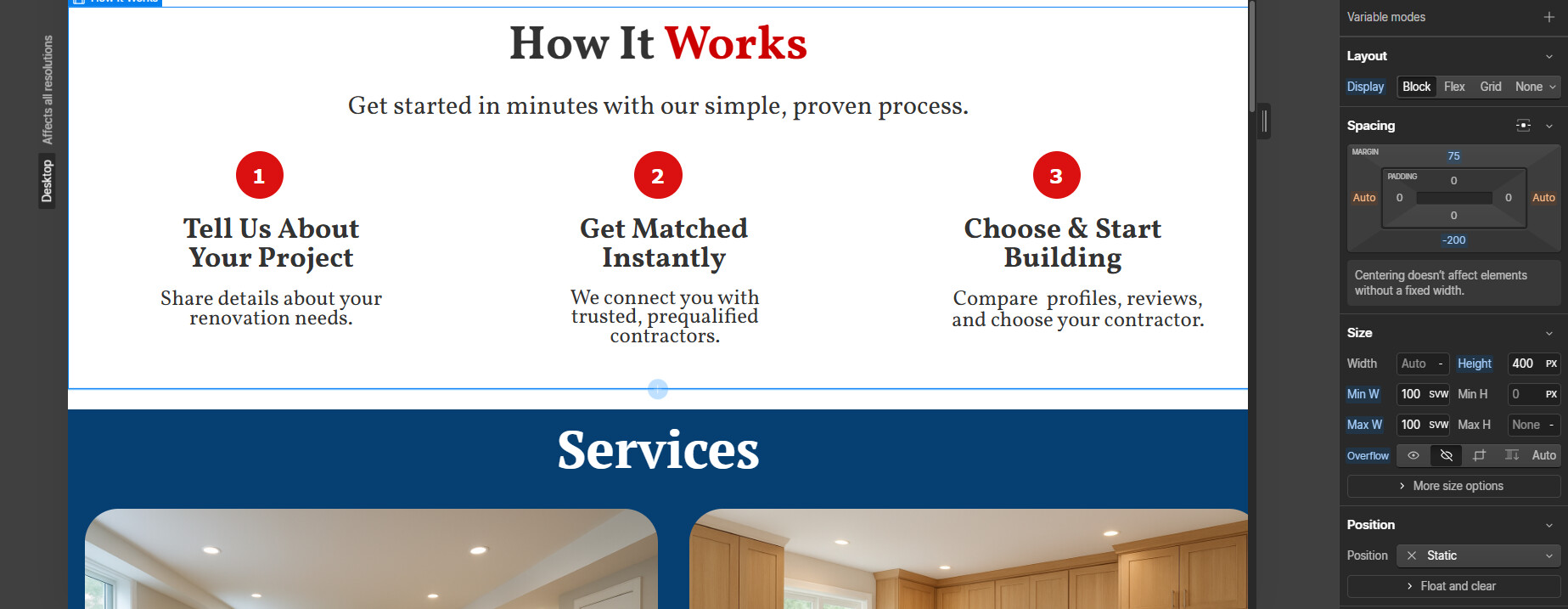
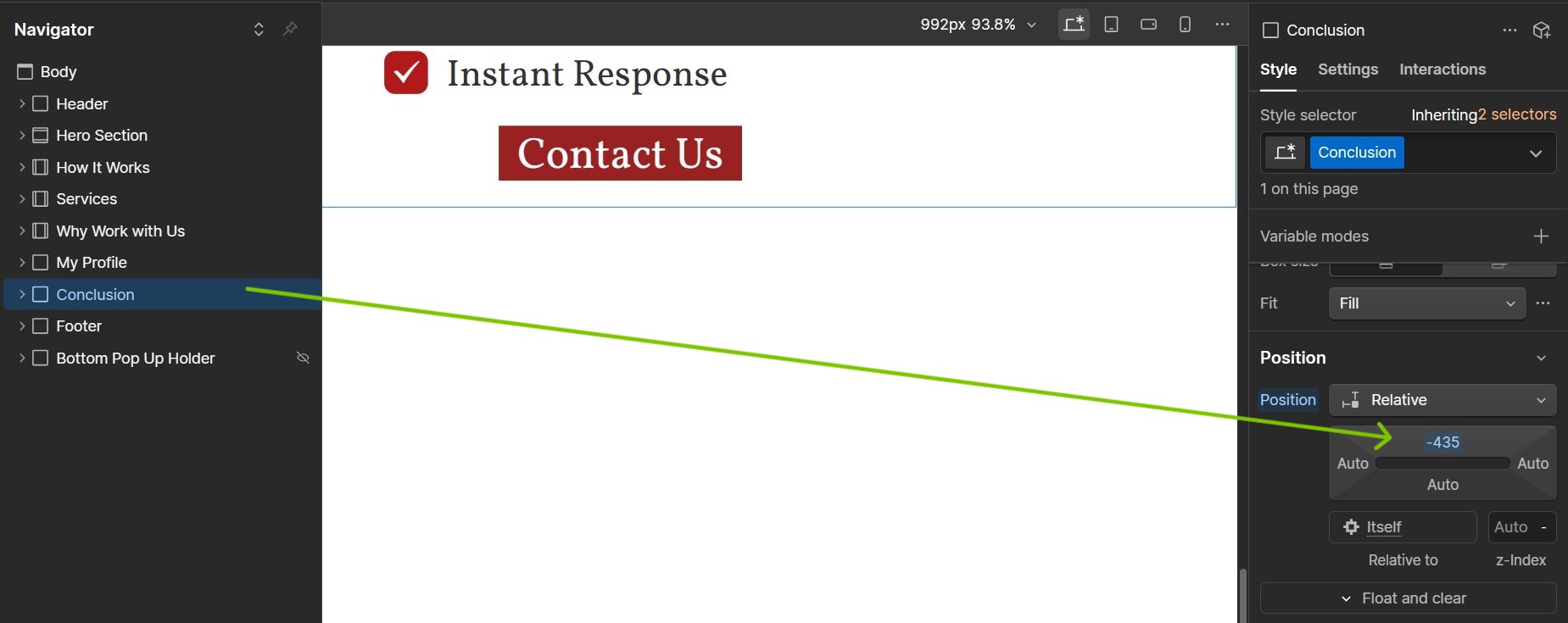
There’s an issue with the spacing between my “How It Works” and “Conclusion” sections.
Whenever I add a new element below them, it automatically leaves some extra space at the top. For example, when the “How It Works” section has zero bottom margin, there’s still a big gap before the “Services” section starts. The same thing happens with the “Conclusion” section and the footer.
To reduce the gap, I had to use negative bottom margins on both sections.
However, I’d like to know why this gap is appearing in the first place and what the correct way to fix it is. My site isn’t fully responsive yet, so I’m worried this negative-margin trick might break things on mobile.
Note: The Div Block 16 was only added for reference — it’s not part of the actual layout.
Please let me know the reason behind this and shall I do to fix this.
The spacing issue you’re experiencing is due to collapsing margins, which occurs when margins of adjacent elements combine into a single margin. Here’s how to properly handle spacing in Webflow:
Add padding to the Body element instead of adding top margin to your first element. This is the recommended approach because:
It prevents content from being pushed outside the Body element
It maintains consistent spacing across different screen sizes
It avoids potential layout issues that can occur with negative margins
You can adjust the Body padding in the Style panel under Layout > Spacing. This will create a more reliable and maintainable spacing structure for your design.
You can reset those values and get rid of the negative margins you have setup to counter this issue and all the containers should be stacked without any extra space.